
Connecting your audio notes directly to Notion creates a powerful, organized archive of all your thoughts, meetings, and ideas. This guide will walk you through the entire process from start to finish, ensuring a smooth and successful integration. Let's get started!
Step 1: Create Your Notion Database
The first and most crucial step is to create a dedicated home for your notes inside Notion. We'll be creating a special type of page called a Database. Think of it as a smart spreadsheet that will hold all your information.
- Log in to Notion and navigate to the workspace where you want your notes to live. It's important to create this in a shared workspace, not in your private space, so our application can access it after you grant permission.
- In the left-hand sidebar, click the "+ New page" button to create a new page.
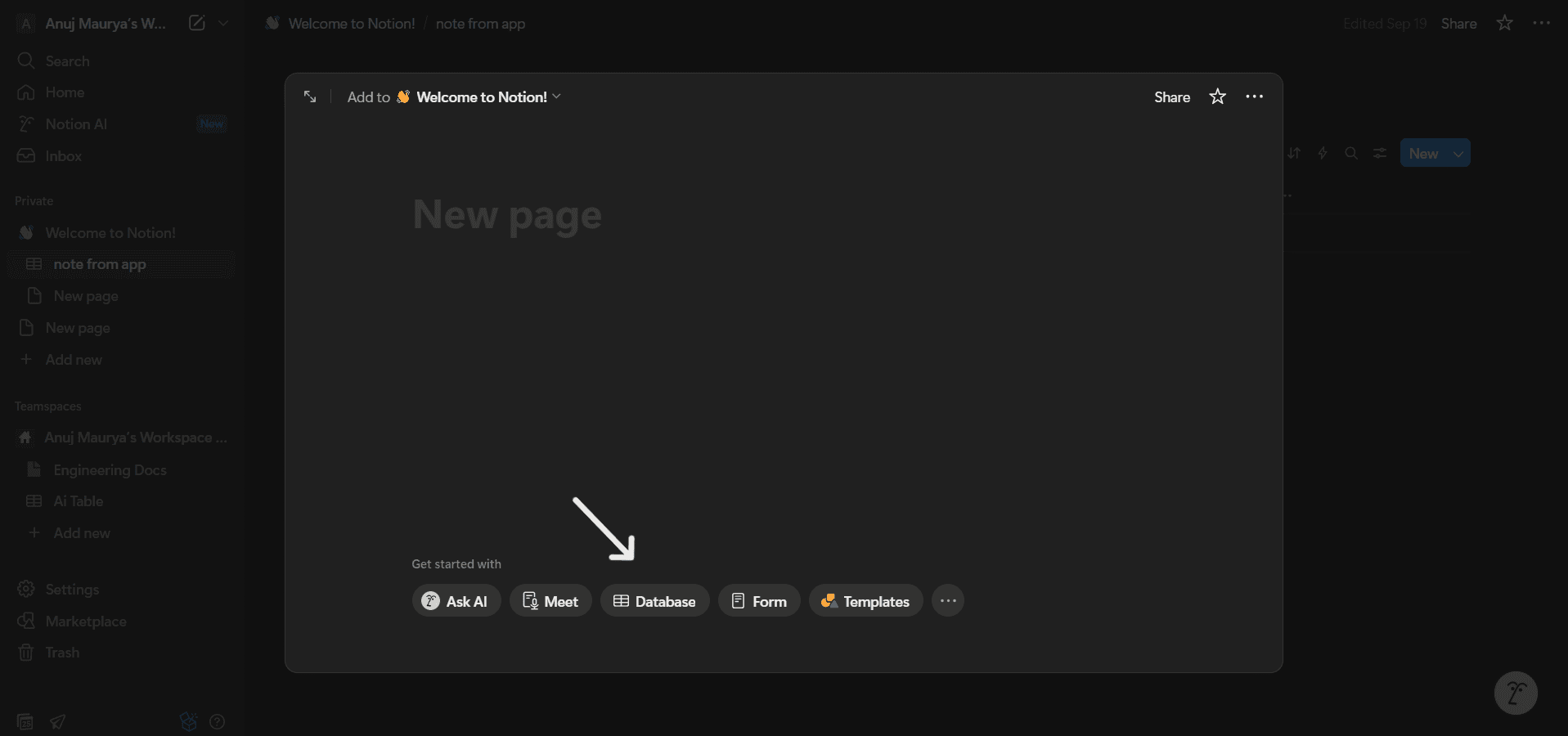
- You'll be presented with a new, empty page. Under the "DATABASE" section in the body of the page, click on the "Table" option.
- Notion will immediately generate a new full-page database. Give it a clear and memorable title, like "My Quick Audio Notes" or "Meeting Transcripts". This is the name you'll look for when connecting our app.
Step 2: Set Up the Correct Database Columns
For our application to correctly send data, your database needs specific columns with exact names and types. Your new database starts with "Name" and "Tags" columns by default. Let's configure them properly.
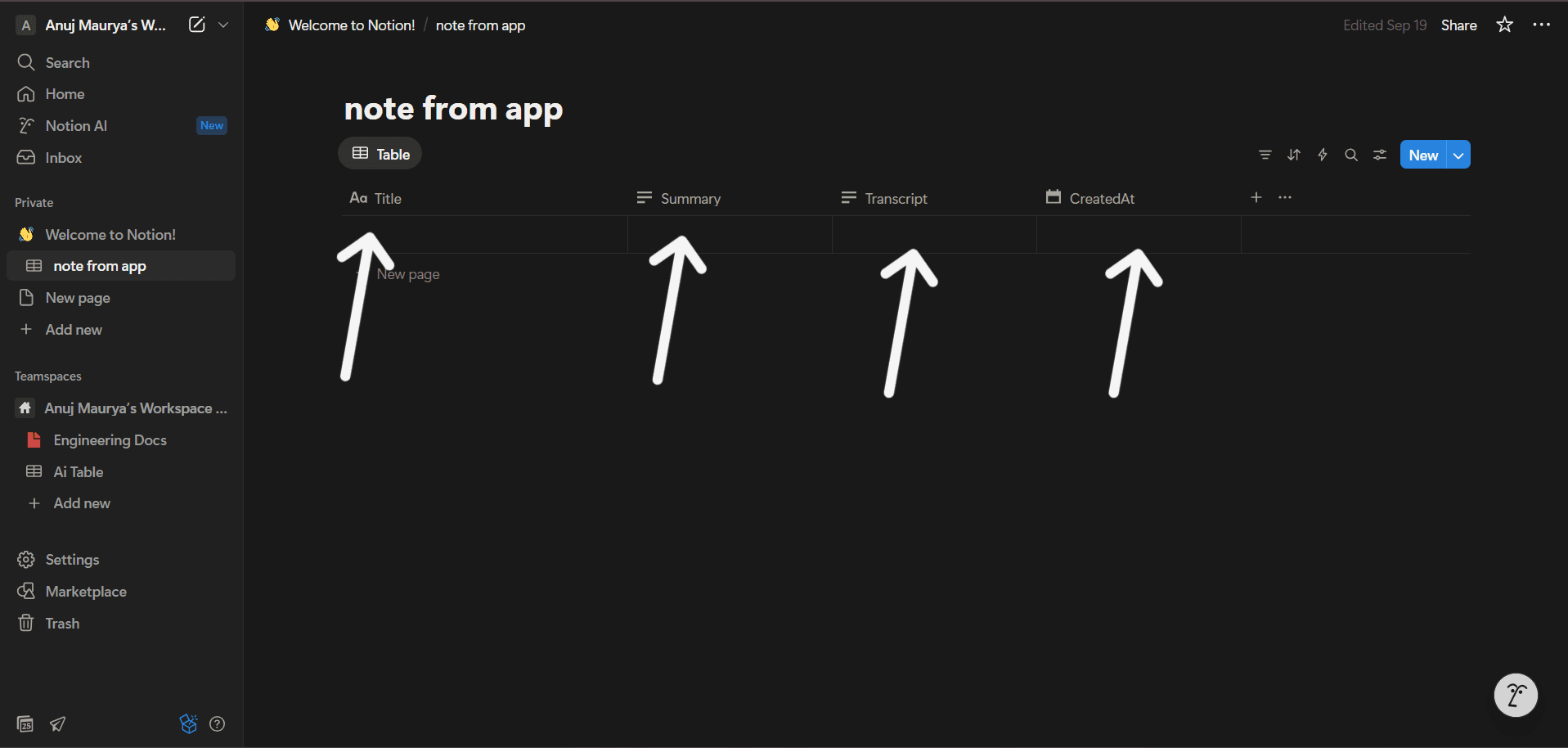
- Configure the Title Column: The default "Name" column is almost perfect. Click on its header and rename it to `Title`. This column's property type must be "Title".
- Remove the Tags Column: We don't need the default "Tags" column. Click on its header, then click "Delete property" from the menu that appears.
- Add New Columns: Click the "+" button to the right of the "Title" column to add the following three columns one by one:
- Name: `Title`, Type: `Text`
- Name: `Summary`, Type: `Text`
- Name: `Transcript`, Type: `Text`
- Name: `CreatedAt`, Type: `Created time`
- Final Check: When you're finished, your database should have exactly four columns in total: `Title`, `Summary`, `Transcript`, and `CreatedAt`.
Step 3: Connect and Authorize
Now that your Notion database is perfectly set up, it's time to link it with our application.
- Return to our application's Notion Integration page and click the "Connect" button.
- You'll be redirected to a secure Notion Authorization page. Here, Notion will ask you to grant our app permission to access your pages.
- Click the "Select pages" dropdown and choose only the database you just created (e.g., "My Quick Audio Notes"). This is more secure than granting access to your entire workspace.
- Click the "Allow access" button at the bottom. Once you do, you will be automatically redirected back to our application's "notion-integration" page.
Step 4: Finalize the Connection
This is the last step! You just need to tell our app the precise address of your new database.
- Go back to the Notion database page you created.
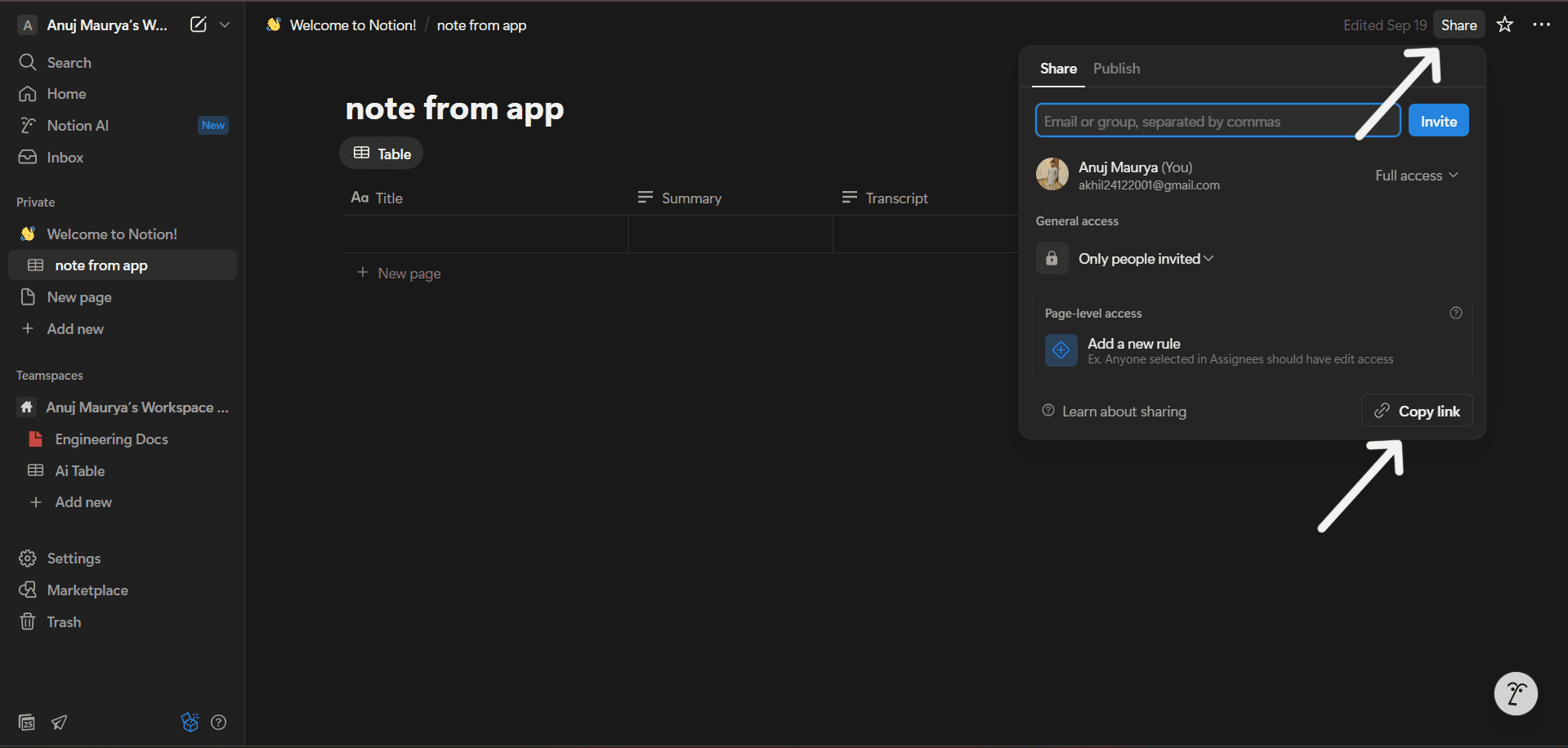
- In the top-right corner of the page, click the "Share" button, then in the popup, click "Copy link". The link is now copied to your clipboard.
- Return to the Quick Audio Note's "notion-integration" page. Paste the link you just copied into the input box provided.
- Click "Submit" to finalize the connection.
You're All Set!
Congratulations! Your Notion integration is complete. All your future audio notes, summaries, and transcripts will now be automatically saved as new entries in your database.